


XB Game Controller
3.611.00 Reviews
App Specs
- Version
- 15.0
- Updated On
- License
- Free
- Downloads
- 50,000+
- Developer
- Fa9ssa
- Categories
- Libraries & Demo
- Platform
- Android
Screenshots
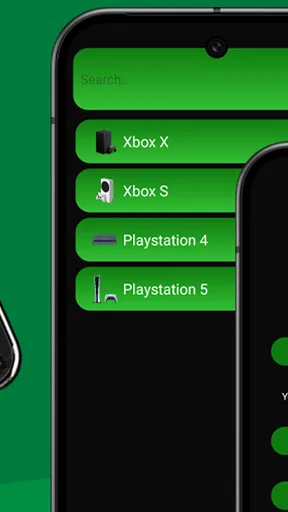
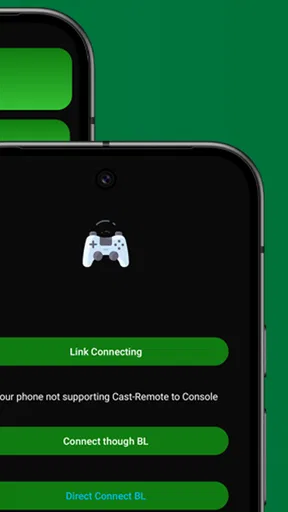
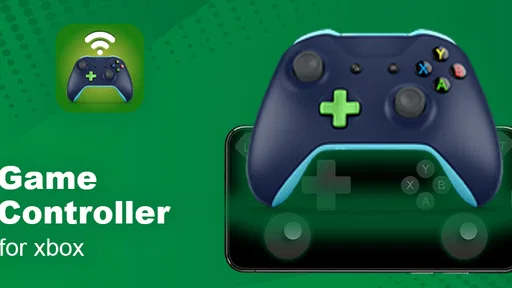
 Analysis by AppCompare
My first question with a phone-as-controller app is not how many buttons it offers, but what happens when the connection becomes the weak link. A controller can feel natural in a quiet room and frustrating the moment the network or pairing gets in the way. That makes XB Game Controller an interesting option to assess by the situations it may suit, as well as by the interruptions a player should be ready to handle.
Why the connection deserves attention
The appeal of a phone controller depends on more than its on-screen layout. You need the phone and the device or game you intend to control to communicate in a way that feels responsive. The app is presented as a wireless Xbox controller, but the practical experience still depends on a suitable setup and a steady connection. I would treat connection quality as part of the controller itself, not as a small technical detail to think about only after something goes wrong.
That distinction matters most in games where a brief delay changes a move. A slower, turn-based session is usually more forgiving than a close race or a fast action sequence. If the response feels late, it is worth checking the connection and trying a less demanding game before deciding that the layout or your timing is the problem. A phone controller cannot make an unstable connection feel like a wired pad.
A better fit for some rooms than others
I can see this being useful when I am already near the device I want to control and do not have a separate controller within reach. It also makes sense as a spare option for a short shared session: rather than passing one physical controller around, another player may be able to use a phone, provided the setup supports that use. I would not count on that convenience until I had tested the connection and controls beforehand.
For travel, a phone is easy to carry, but that does not automatically make the app a reliable choice in every mobile setting. Public Wi-Fi, crowded spaces, and moving between networks can complicate a session, while a small touchscreen can be harder to hold steadily than a dedicated gamepad. I would use it in a hotel room or at a friend’s place after a quick check, rather than build a long session around an untested connection.
Simple checks when the session falters
If input stops responding, I would avoid changing several settings at once. First, check whether the phone is still connected to the intended device; then close and reopen the app if the connection appears stuck. If that does not help, reconnect deliberately and test a basic input before returning to a demanding game. This step-by-step approach makes it easier to tell whether the issue is pairing, the network environment, or a particular game’s control support.
There is a useful practical habit here: test the controls before inviting someone else to play. A few minutes spent confirming that the expected buttons work can prevent a session from turning into troubleshooting. I would also keep the phone charged and within comfortable reach, since relying on it as the controller means its battery and screen become part of the play setup.
Worth Reading Before You Choose

Flipboard Shows What News Apps Must Do Beyond the Feed

Switching to Android Auto Means Rethinking Your Driving Routine

Google Calendar Makes a Crowded Week Easier to Manage

Ludo King Makes the Most of the Minutes Between Plans

Baby Panda World Brings Quick Play to Modern Phones, but Its Game Library Feels Busy

ESPN’s Live Game View Makes Following Close Games Easier
Data-conscious expectations
Because this is a wireless control experience, I would distinguish between the traffic involved in sending inputs and whatever data a game or streaming service uses. Those are not interchangeable. If you are playing over a mobile connection or watching streamed gameplay, the broader session may use data even when controller inputs themselves are light. For that reason, I would check the game or streaming setup separately and avoid assuming that using the app makes the whole session data-free.
When conserving a limited mobile plan, the safer choice is to use a trusted local connection and keep an eye on the game or stream’s own network use. This is especially relevant away from home: the phone may be serving as the controller while another service handles the actual gameplay or video. Thinking about those roles separately gives you a clearer idea of what may be using data and where to adjust your habits.
Getting Started with XB Game Controller
First things first, installing the XB Game Controller app was a breeze. Available on both Android and iOS, it doesn’t take up much space and launches quickly. As soon as I opened it, I was greeted by a user-friendly interface that even a newbie could navigate without breaking a sweat.
Connecting Your Devices
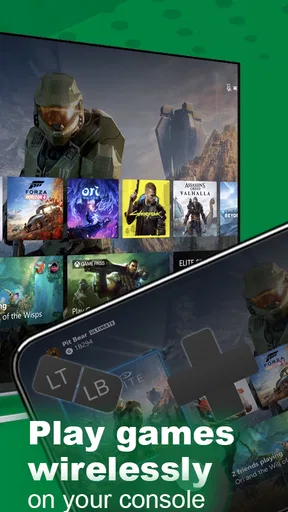
This app does exactly what it says on the tin—it turns your smartphone into a fully functional game controller. All you need is a stable Bluetooth connection, and you’re good to go. Pairing was straightforward; it only took a couple of taps and voila, my phone was ready to rock as a controller for my favorite games.
What impressed me was the minimal lag. Honestly, I was expecting some delay, but the connection was so smooth that it felt like I was using a traditional controller.
Customization Galore
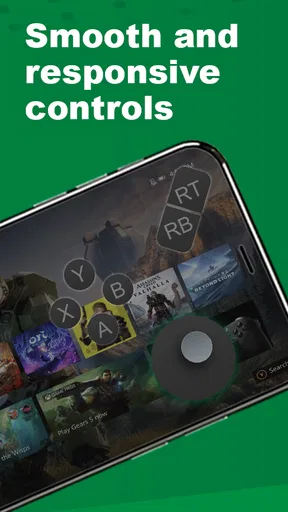
One of the standout features for me was the level of customization. You can tweak the button layout to suit your gaming style. Whether you're into racing games or FPS, adjusting the controls is as simple as dragging and dropping. The app even lets you save different profiles for different games, which is super handy.
I spent some time fiddling with the settings and creating my perfect layout. The tactile feedback added another layer of immersion, making the gaming experience incredibly satisfying.
Compatibility and Performance
Let’s talk compatibility. The XB Game Controller app supports a wide range of games. I tested it with several popular titles, and it worked flawlessly. The app’s performance was consistent, with no noticeable drop in frame rate or responsiveness during gameplay.
However, I did notice that some older devices might struggle a bit. If you’re running on an older OS version, you might experience some hiccups. But if your phone is relatively up-to-date, you’re in for a smooth ride.
Who is most likely to enjoy it?
XB Controller is a free app in the Libraries & Demo category, developed by Fa9ssa. It has an Everyone content rating, a 3.7 average from around 260 ratings, and more than 50,000 installs. Version 14.0 is listed for devices running Android 7.0 or later. Those figures give a useful sense of its reach, but they do not guarantee that it will suit every phone, game, or setup.
I would put it on the shortlist for someone who already has a compatible gaming setup and wants a convenient backup controller, or who prefers experimenting with a touch-based layout before buying more hardware. Its best case is practical: the phone is nearby, the connection works, and the player values convenience more than the feel of physical sticks and buttons.
On the other hand, I would skip it if you want a guaranteed replacement for a dedicated Xbox controller, especially for competitive play or long sessions. A touchscreen has no physical stick travel, and your fingers can obscure part of the display. The app may offer a more flexible arrangement, but customization cannot fully reproduce the comfort and tactile precision of a purpose-built gamepad.
Making customization useful, not fussy
The saved-profile idea is most useful when treated as a small setup routine rather than a project. I would make one layout for a game I play often, test it in a low-pressure session, and change only the controls that feel awkward. Then I would save the result before building another profile. That keeps experimentation from turning into repeated setup every time I switch games.
Different genres also expose different trade-offs. A racing layout may benefit from keeping frequently used controls near the thumbs, while a shooter can demand more simultaneous inputs and leave less room for comfortable reach. Before a longer session, check whether your hands cover important on-screen information and whether you can reach the controls without shifting your grip. Those small checks can matter more than adding extra buttons.
The mention of tactile feedback is appealing, but I would judge it as a supplement rather than a substitute for a physical trigger or stick. Feedback can make taps feel more deliberate; it cannot provide the same resistance or movement range as hardware. If that distinction is important to you, try a short session first and decide based on how your hands respond, rather than assuming a customizable screen will feel like a conventional controller.
How it compares with other choices
Compared with an ordinary touchscreen game, a dedicated controller app can give controls a more organized, controller-like arrangement. That may help when a game’s own touch buttons feel cramped or cover too much of the action. Compared with a physical gamepad, though, it trades tactile certainty for the convenience of using a device you already carry. Neither option is automatically better: a phone is handy for occasional play, while hardware is usually the safer pick when comfort and consistent physical input matter most.
It also helps to separate a controller app from a game-streaming app. One handles control input; the other is concerned with delivering a game or its picture across a network. A smooth controller connection cannot fix a stream that stutters, and a clear stream cannot make awkward controls comfortable. If your main problem is video or gameplay delivery, look at that part of the setup rather than expecting a controller app to solve it.
A realistic way to try it
Imagine arriving at a friend’s place for a casual game and realizing you brought no controller. I would install and pair the app before everyone settles in, then test a few inputs in the actual game. If the controls respond well, it can turn a phone into a useful stopgap. If pairing takes too long or the layout feels cramped, switching to a regular controller is the sensible call; the point is to make the gathering easier, not to spend it troubleshooting.
For a solo evening, I would use the same approach: confirm the connection while the game is paused, choose a forgiving section to check the buttons, and only then start a demanding match. That quick trial can reveal whether the issue is a poor fit for the game or a connection that needs attention. It also lets you change your profile before frustration sets in.
What to know before installing
The app is free, which makes a low-commitment trial reasonable, but I would still check that my phone meets the Android minimum if I am using that platform. The listed release date is October 9, 2025, and the current version is 14.0. These details are useful when deciding whether to try it, but day-to-day success will depend more on the phone, the connection, and whether the game accepts the intended controller input.
Although the app is available on Android and iOS as described in the published review, the stated minimum OS requirement applies to Android. If you are choosing a device for a particular game, confirm that the game and the rest of your setup support the same control method. A controller app is only one part of the chain, and compatibility at each end matters.
So, why should you give the XB Game Controller app a shot? If you’re an avid gamer looking to enhance your mobile gaming experience, this app is worth considering. It’s easy to set up, highly customizable, and compatible with a plethora of games. Plus, it offers a tactile experience that most mobile games lack.
As someone who spends a fair amount of time gaming on my phone, this app has quickly become a staple. The ability to switch between games without having to constantly reconfigure the controls is a huge plus in my book.
In conclusion, whether you're a casual gamer or a hardcore enthusiast, the XB Game Controller app is definitely worth checking out. It’s like having a console-quality controller right in your pocket. So go ahead, give it a try and level up your gaming experience!
My connectivity verdict
I see the strongest case for XB Controller as convenience, not as a guaranteed replacement for a physical pad or a cure for network problems. The app makes sense when you can test the pairing, stay near the device, and play something that feels comfortable on a phone-based layout. If you need dependable precision, dislike touchscreen controls, or cannot tolerate a setup delay, a dedicated controller is the more straightforward choice.
For anyone curious, I would start with one short session at home on a stable connection, save a layout only after it feels right, and then try the same setup in the place where you actually plan to play. That modest test tells you far more than a quick install alone. My verdict is positive for casual, prepared use, with the important caveat that connection and control comfort decide whether the convenience pays off.
Pros
- Intuitive interface for easy navigation.
- Customizable button mapping options.
- Supports multiple platforms seamlessly.
- Low latency for responsive gameplay.
- Compact design for portability.
Cons
- Limited battery life for extended use.
- No support for older devices.
- Connectivity issues with some Android models.
- Requires frequent firmware updates.
- Lacks haptic feedback for immersive play.
FAQs for XB Game Controller
What devices are compatible with the XB Game Controller app?
The XB Game Controller app is designed to work seamlessly with a wide range of Android and iOS devices. It's compatible with smartphones and tablets running Android version 6.0 or higher and iOS 11.0 or later. Ensure your device meets these requirements for optimal performance.
Does the XB Game Controller app require an internet connection?
While the XB Game Controller app does not require a constant internet connection for basic functionality, certain features such as cloud saving, updates, and multiplayer modes do need one. It is recommended to have a stable internet connection to fully utilize all features of the app.
Can I customize the button layout in the XB Game Controller app?
Yes, the XB Game Controller app offers users the flexibility to customize button layouts to match their gaming preferences. You can personalize the setup by accessing the settings menu, allowing for a tailored gaming experience that suits your style and enhances performance.
Is the XB Game Controller app compatible with all games?
The XB Game Controller app supports a wide variety of games, especially those designed with controller compatibility in mind. However, not all games may be supported, particularly older or niche titles. It's advisable to check the game's compatibility within the app before starting.
Are there any subscription fees for using the XB Game Controller app?
The XB Game Controller app offers a free version with basic features. However, to access premium features such as advanced customization options, ad-free experience, and exclusive content, users can opt for a subscription plan. Details on pricing and features can be found within the app.


